Premium Calculator (summary)
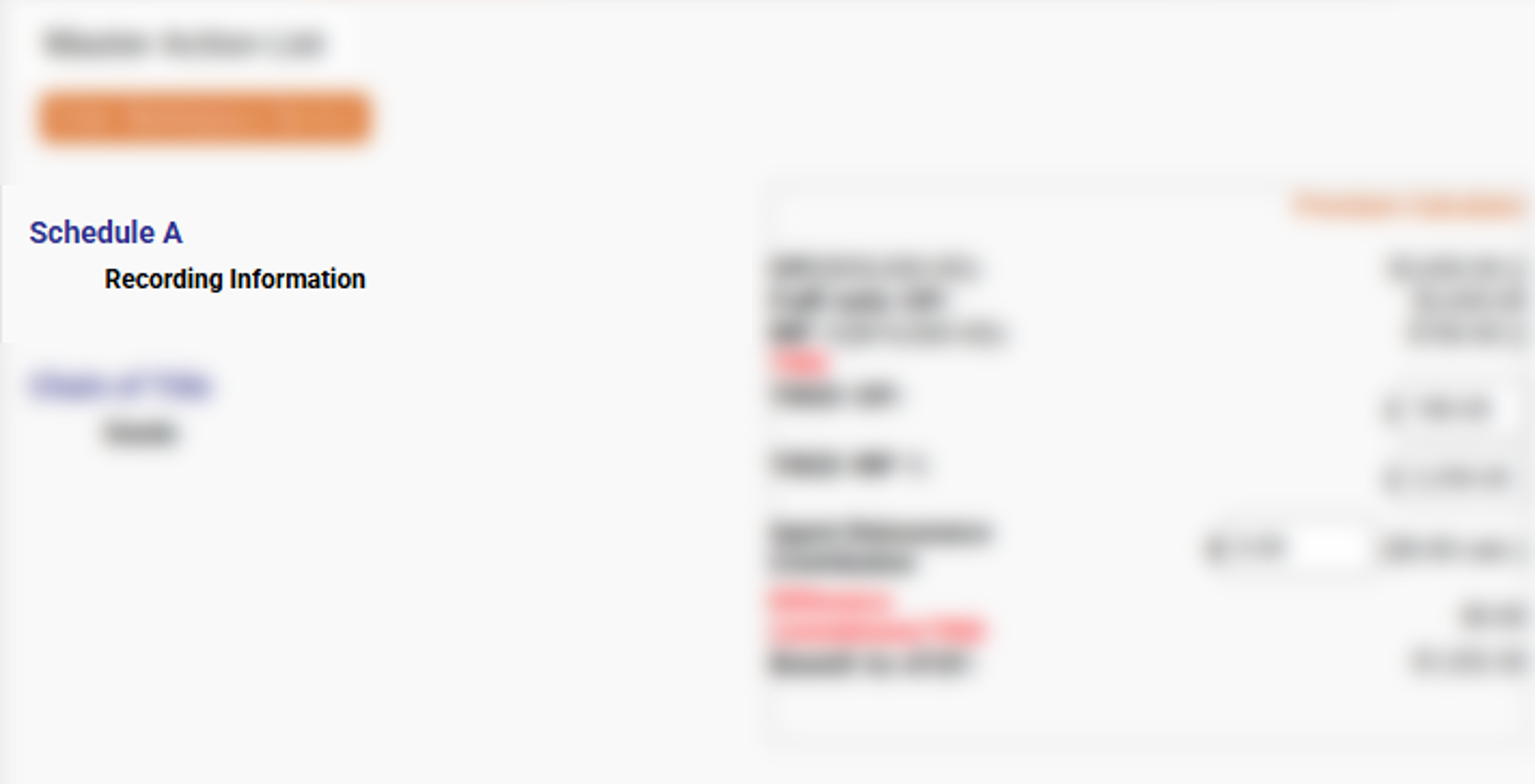
The final piece of information on the Master Action List is the Premium Calculator. The right-hand half of this section contains the Premium Calculator's summary information. To get to the full Premium Calculator, click the link "Premium Calculator" located at the top-right of this section.
OP
This line shows you that an Owner Policy was requested, the coverage amount and the actual premium.
Full rate OP
This row shows the full amount of the Owner Policy. It does not include any discounts which may have been elected on the GEN INFO tab.
MP #
This row shows each mortgage listed on the GEN INFO tab which will have a policy issued, the coverage amount, and the actual premium amount.
TRID
This section generates the CFPB compliant amounts that appear on the CD or HUD. Starting with the TRID MP 1, EPIC places in the full premium for the lender policy without any applied discounts. Next, EPIC will deduct the full amount of the lender policy from the full amount of the owner policy. The remainder will be placed in the TRID OP field. The difference between the sum of the TRID calculations and the actual premium amounts is placed in the "Difference commitment/TRID" field, usually as a credit.
Agent Reinsurance Contribution
In the event that the coverage amount exceeds the current reinsurance threshold set by ATGF, the agent will be required to contribute a portion of the reinsurance amounts with the policy. These amounts are paid from the premium collected and not billed back to the insured. Contact underwriting for the current reinsurance threshold.
Remit to ATGF
This amount is calculated automatically by EPIC based on the split that is currently in EPIC.
Premium Calculator (Full)
Clicking on the "Premium Calculator" link on the Master Action List section of the Policy Tab pulls up the full Premium Calculator.
Date when Rate was Quoted
This is the first section on the premium calculator. In most cases, this field will not be used. The only time that information would need to be placed in this field is when ATGF has re-filed their rates and affected premiums. Enter the date a quote was provided to force EPIC to calculate rates in effect prior to the current rates. Entering a date when not sure as to when a new rate was changed ensure that EPIC will calculate correctly.
Premium Split Percentage
These fields display the percentage of the premium contractually agreed upon between the agent and ATGF. In the example, the agent will receive 40% of the premium and ATGF will receive 60% of the premium. This will vary based on the agency agreement.
Note: EPIC only displays whole numbers here. If the split is 35.5% and 64.5%, EPIC will display 36% and 65%. This does not affect the calculations as those are based on the actual amounts programmed into the back-end of the system, not the rounded amounts displayed here.
Owner Policy
This will show only on purchase files. The screen cannot be changed and reflects the information entered into the GEN INFO tab.
Policy Date
This field displays the recording date entered on the GEN INFO tab.
OP Amount
This field reflects the amount of coverage entered on the GEN INFO tab.
OP Premium
This field calculates the premium amount to be charged based on the coverage amount, jacket, and any discounts. This field can be overwritten. When overwritten, it will trigger a manual review. ATGF underwriters will request the reason for overwriting the premium. In most cases, approvals are only granted when an error is found in the EPIC calculations.
Mortgage
This section will always show individual "squares" for each insured mortgage shown on the GEN INFO tab. This section will display the Lender name, coverage amount, and the calculated premium.
ATGF Premium Information
This section helps break down the premium calculations and the split. The Gross Premium shows the sum of all policy premiums. Endorsements will show the sum of all premiums charged for endorsements. CPL will show the fees due for a CPL, if applicable. This field will only show when a CPL is ordered. Agent Reinsurance will show the amount that will be added to the ATGF Splits for reinsurance. Remit to ATGF shows the portion of funds collected that will need to be sent to ATGF once a policy is issued. The Retain section is the amount that is kept by the agency.
Note: When validating the accuracy of the amounts to remit and retain, keep in mind that only the premiums collected are subject to the split. CPL fees and reinsurance amounts are additional amounts added to the "Remit to ATGF" after the premiums are calculated the split is applied.
Endorsements
When endorsements are added to a file on the POLICY tab, they will appear in this section of the Premium Calculator. In the screen shot of the full premium calculator above, the Endorsements field was not present. This is due to the file not having endorsements. To view the field, click on the "+" inside the triangle. This will reveal the list of all endorsements currently on the file. Endorsement fees are shown in non-labled columns for the Commiment (PC), Owner Policy (OP), Lender Policies (MP1, MP2, MP3, etc). Any amounts due will show to the right of it's corresponding label, making it easier to all of the policies contributing to the amounts shown in the "Endorsemsents" field above.
File creation Date
This will show the date and time the file was created. All times are shown in Mountain Time.