Log In

To log in to EPIC Admin, you will need to verify the specific EPIC Admin login to access (this is the login that does not have a “USER”, non-admin users will login with an “ACCOUNT” name, “USER” name, and password).

To log in to EPIC User, you will need to use the below link:

Once you have selected the site that you need to login, click the link to get the below login screen.
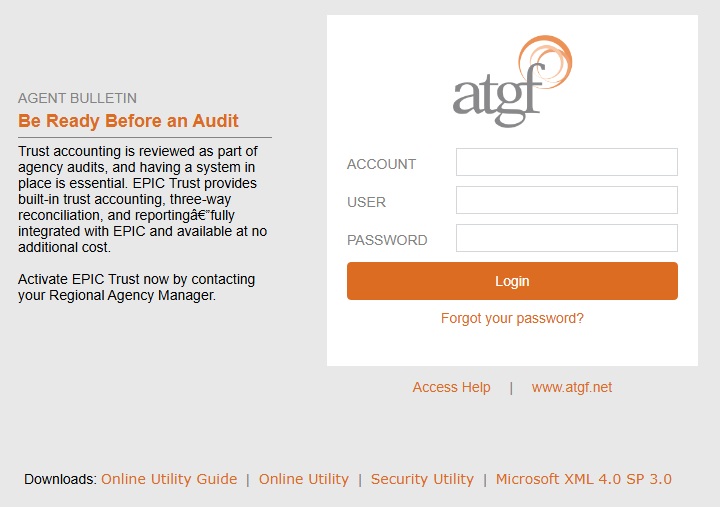
When signing in as a user and not the admin, enter your User name here; otherwise, you do not enter anything in the User field when logging in as the admin.
If logging in as a user, enter your unique user password; otherwise, enter the account admin password leaving the User field blank.
If using Microsoft Edge in "IE Mode", follow the steps below to install the online utilities. If you are using Microsoft Edge with IE Mode turned off or Google Chrome, you should only install the Microsoft utility. If you are using a Mac computer, do not download any of these programs, they will not run on your operating system.
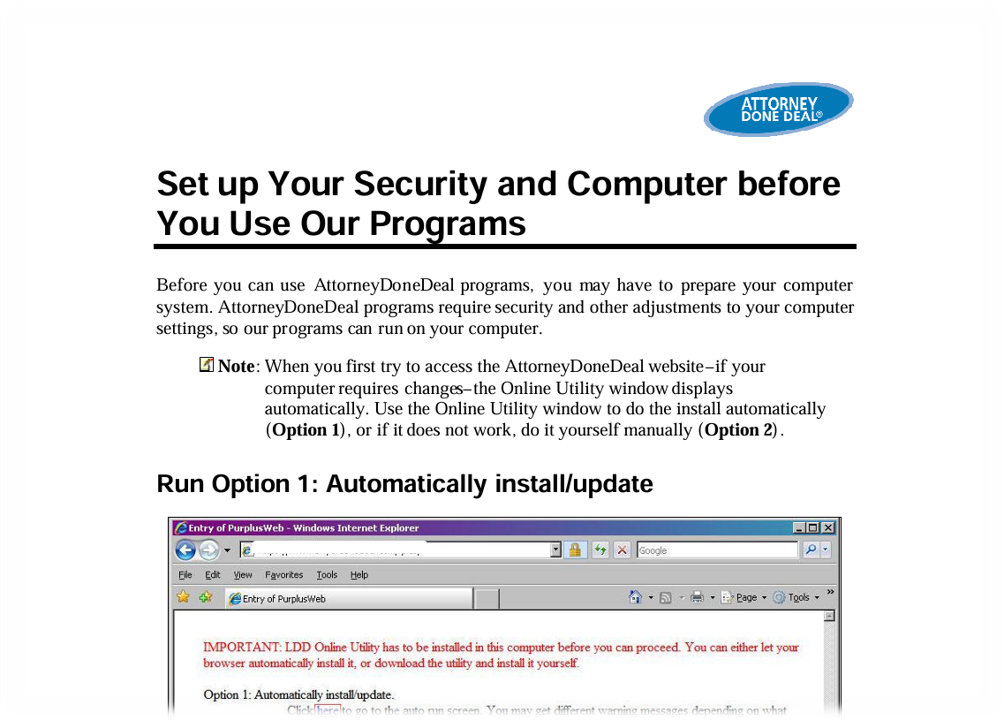
This link opens a guide used for our old EPIC system explaining how to install the other three utilities.
The Online Utility
  1. First, click the link to download the Online Utility
  2. After downloading, open the file named "LDDOnlineUtility64.exe" either from your download folder or from the download list within the browser
  3. You will be asked to allow the program to make changes to the computer, select Yes and follow the on-screen prompts.
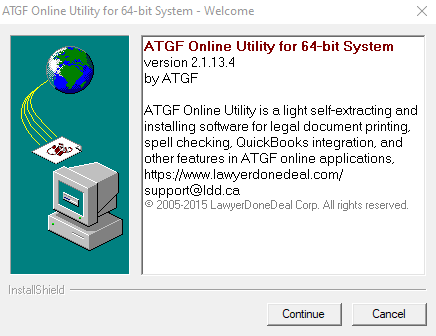
Click "Continue" to begin the installation process.
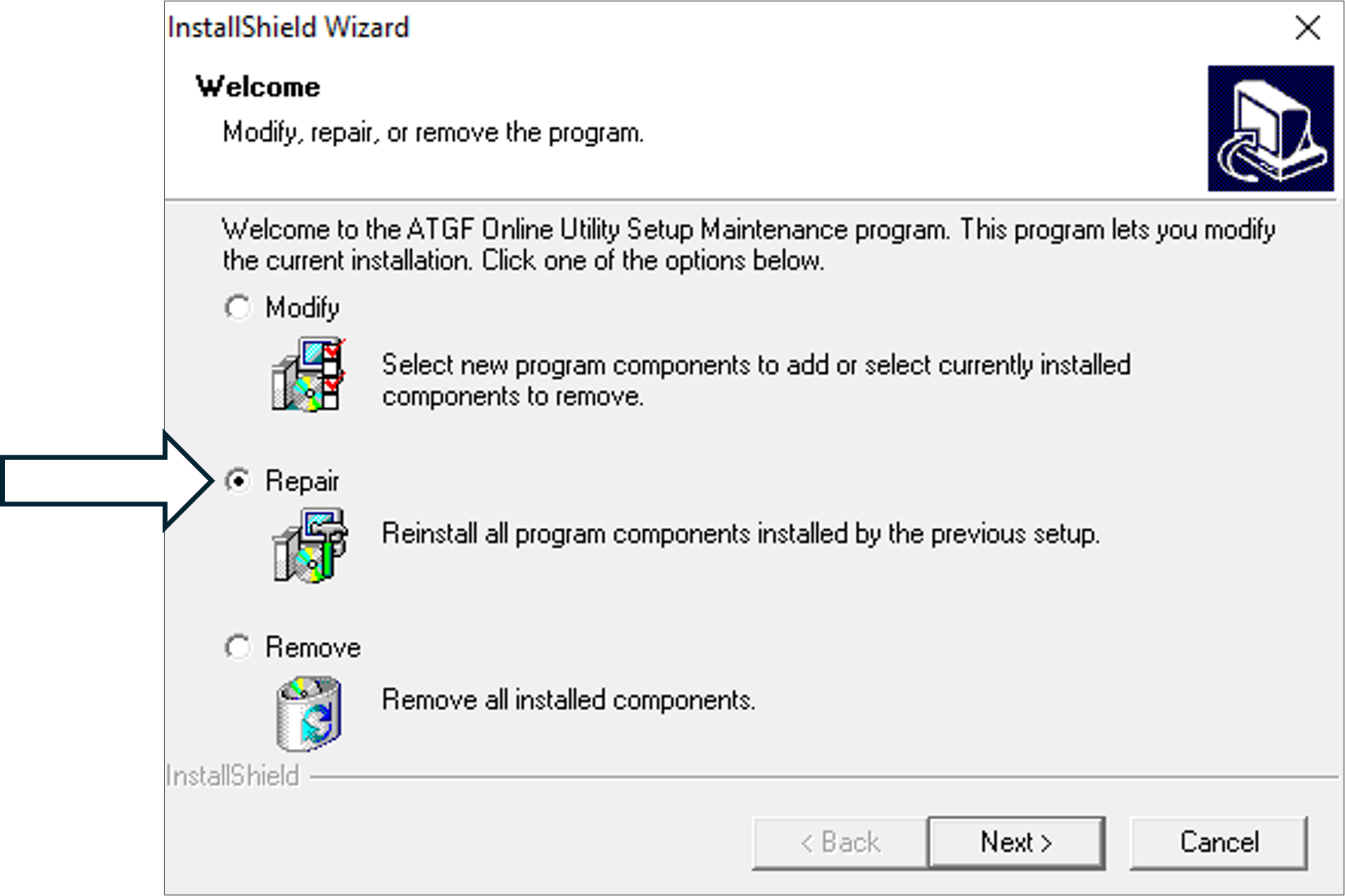
When this screen loads, click "Repair" unless an "Install" option is available.
The Security Utility
  1. First, click the link to download the Security Utility.
  2. After downloading, open the file named "RPWSecurity.reg" either from your download folder or from the download list within the browser. Since this file will alter your computer's registry, your browser may not allow you to download without confirming that you intended to download it. In this case, click "Keep file" in the browser's download window.
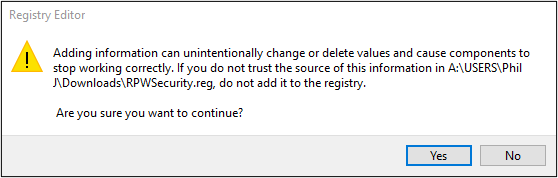
  3. Once you have click to run the file, you will get a system message asking you to confirm that you want to allow the program to make changes toyour computer. Click "Yes" to continue.
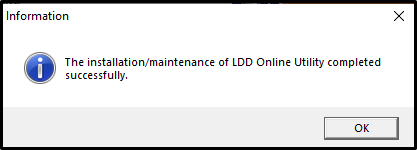
Click "Yes" on this box to continue. When complete, you will recieve a notification that the installation was successful.
The Microsoft XML 4.0 SP 3.0 file
  1. First, click the link to download the "Microsoft XML 4.0 SP 3.0" file.
  2. After downloading, open the file named "msxml.msi" either from your download folder or from the download list within the browser.
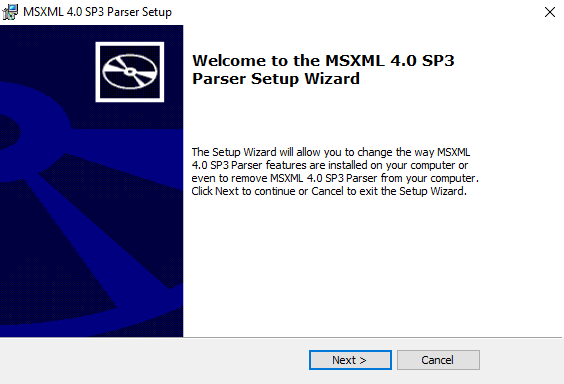
This window will load, click next to progress to the next screen.
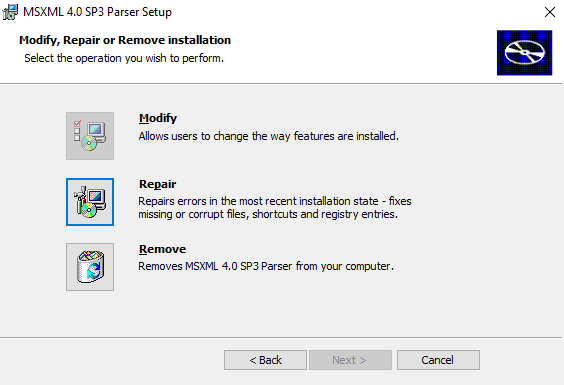
On this screen, you may have an option for "Install" if you do, chose that option; otherwise, select "Modify" and click "Next".
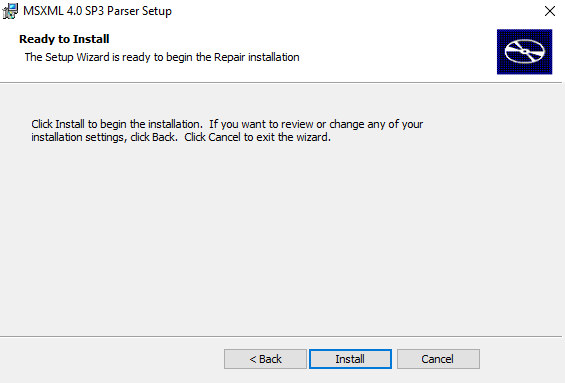
This is the next screen that will appear. Click "Install" to start the installation process. The screen will then load the progress screen. This may be a fast or slow process depending on your computer.
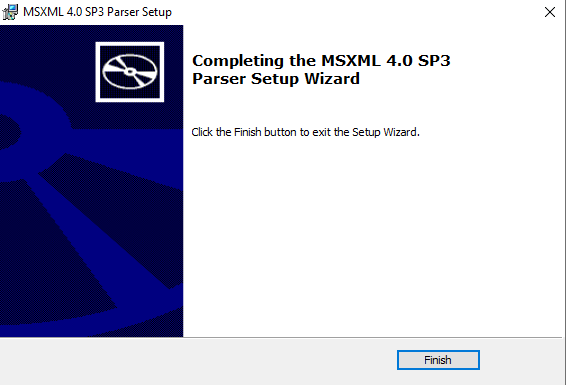
Click "Finish" to close the window.