EPIC's Landing Page

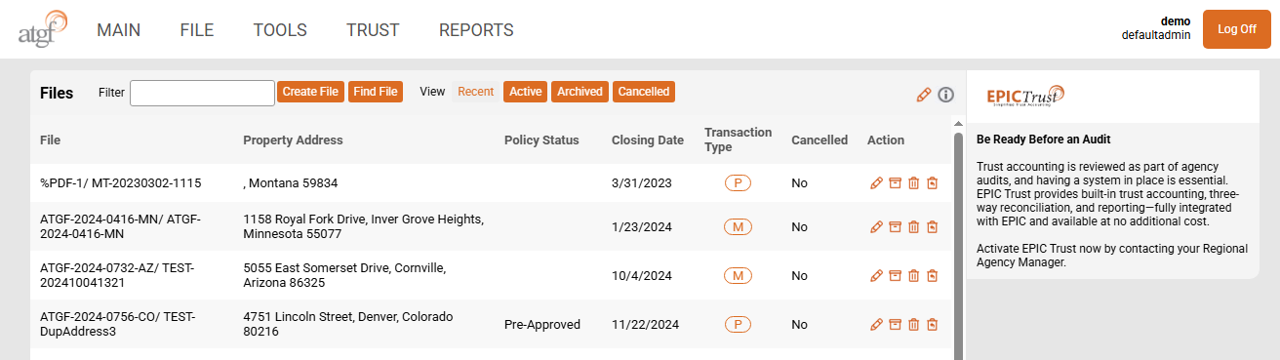
EPIC's landing page consists of several sections:
  • The Menu Toolbar will always be present. You can review all the options for Toolbar here: EPIC Menu Options
  • The second section "Files" Contains all of your files sorted or filtered based on the currently selected view.
    • Within this section is housed the control buttons that provide specific display abilities for the user.
  • The third section is the Bulletin, here we will post information that you may affect compliance issues, EPIC Updates, or general information.

Filter

Use this box to quickly search for files based on the selected view.
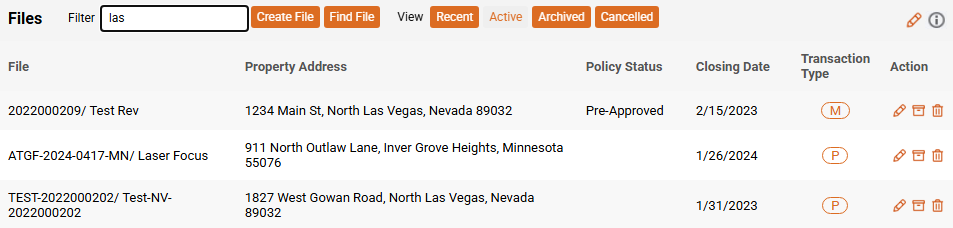
You can use any information in the search field as long as it is contained in the row and concurrent to each other (you cannot search part of the file number and then part of the address at the same time). In the example below, typing in “las” reveals all the files that have “las” in any of the displayed information; in the example, we have three files showing in Las Vegas and one from Minnesota since the File Name was “Laser Focus”.

Create File

This button is a quick way to create a file from the main page instead of navigating to the FILE menu and selecting "Create New File". Once you have selected this button, you will be taken to the New File Setup screen
This screen will be covered in the New File Setup section.

Find File

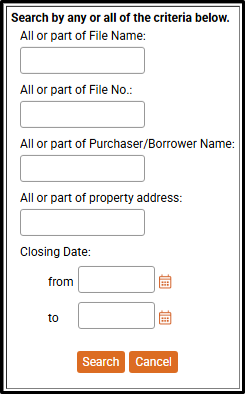
Clicking on the button will launch a new window to the left of your file list (if operating on full screen) or over the list of files. This is completely dependent on the amount of screen real estate you have available for EPIC to use:
The search options available within this menu provide the user with several different ways to search for a file, those options are covered below:

Searches can contain partial information; however, all data must be consecutive. For example, if you are search the proeprty address to locate a file with the address "123 South Main Street, Denver, Colorado", you cannot search "South Main Denver", similarly, if your file number is 2026-MV36579-Wise, searching "2026 Wise" will result in 0 search results.

  • All or part of File Name:
    Search for a file based on the file name used.
  • All or part of File No.:
    Search for a file based on the file name.
  • All or part of Purchaser/Borrower Name:
    Searches only the party that is will be in title post closing, it does not search the vendor (seller).
  • All or part of proeprty address:
    Search any part of the municpal address. You do not have the ability to search for files by county.
  • Closing Date:
    This allows you to search for files that are scheduled to close within the specified time frames. Remember, if you leave either of these blank, te search results will include all files closing either from the date entered or to the date entered. Both fields must contain a date to search a fixed period.
    • from:
      This is the starting date for the search results.
    • to:
      This is the ending date for the search results.
These fields can be used individually or togther to help in narrowing down the search. Once the search criteria is entered, click the "Search" button and the results will be displayed under a new "Search Results" view on the main page.
Click the "View" tab above to explore the different view options available in EPIC.

View options

EPIC has 4 pre-defined views always available to the user and a fifth view "Search Results" that only appears when a file was searched using the "Find File" function.
Recent
The view is predefined and contains that last 20 saved files. This list constantly changed based on the different files that are accessed, but should provide the user with the most relevant files in a rather short list compared to the "Active" view. It's important to remember that you do not need to hit the save icon for the list to update. EPIC incorporates some auto-save functionality, simply going into a file may trigger an auto-save to cause a file to be added to the "Recent" view.
Active
This view shows all of the files available that have nto been cancelled or archived. When using the "Filter" fields to search, this is the best view to be in to ensure that all active files are searched. This view can take a while to load, depending on how many files left in theactivelist.
Cancelled
This view shows all of the cancelled files. Cancelling files enables you to re-use a file where a deal may have fallen through, this will save setup time depending on how much information had already been entered prior to it being cancelled.
Archived
This view shows all of the archived files. Archiving files enables you to free up space on the "Active" list. This option is only available for files that have closed and policies issued. Remember, files should not be archived until after all follow-ups are complete, including verification of lien releases on loans paid off during closing.
Search Results
This view is hidden until a search is completed using the "Find File" feature from the main page or "Find a File" from the "FILE" menu. Once a file is selected from the list, this view will drop off of the screen when navigating back to the main landing page. EPIC will not hold the search results for the entire session, only while on the Main page after the search was initiated.


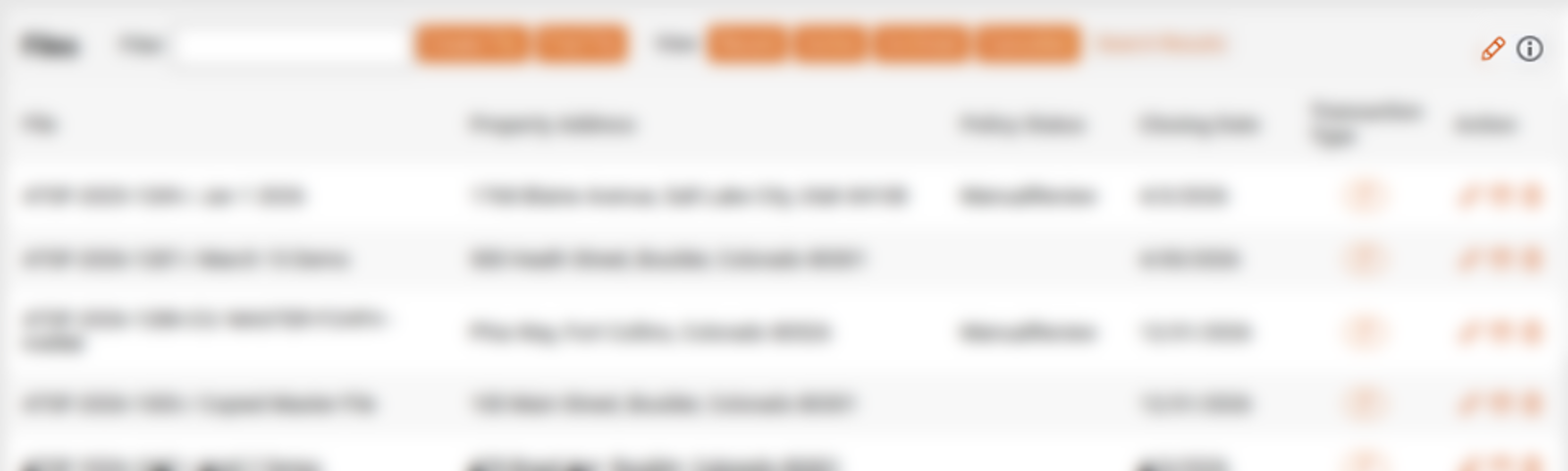
Pencil icon

Select the pencil to change how the list is displayed. The new window that loads will allow you to customize the columns you want to see, their order, and the preferred sorting of the columns. EPIC navigates to a blank setup page:
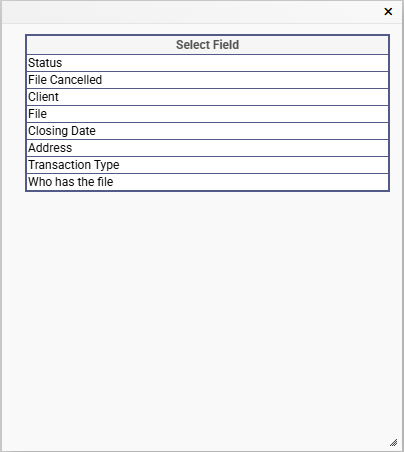
Use the ellipses button to open the list of fields to chose from. The columns are ordered from left-to-right as you select each one.
Once selected, enter the sorting order. This will sort the data for that column in descending order. If the column does not need to be sorted, it can be left blank. Once a column is selected, EPIC will display another field box that, if desired, can be contain another field. Continue adding all the fields that you would like to see when in viewing the file list.
When all the fields are selected that you want in your view, click the "Save" icon in the top right of the screen. After that, click the "MAIN" menu option to see the new list display.
It is important to note that when using the custom view, EPIC will no longer display the action column. This feature is currently reserved only for the default view.
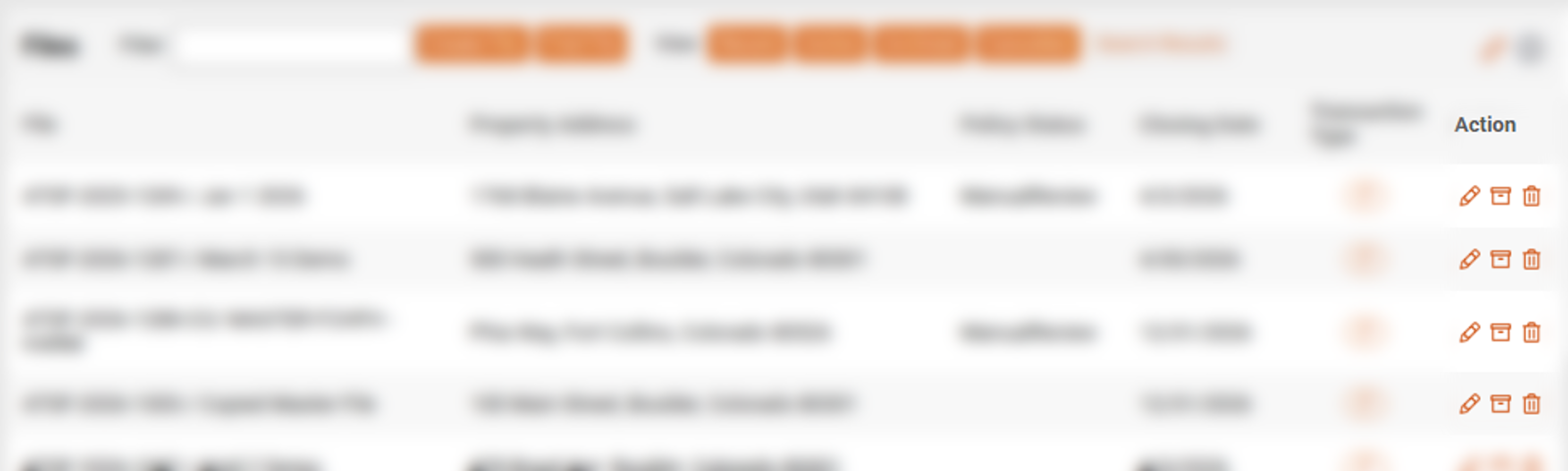
Action column

The action column contains three icons for each file; a pencil, a box, and a trash can.

  • The pencil icon:
    This icon opens the file. This is the same action that occurs when clicking anywhere else on that row.
  • The box icon:
    This icon will archive a file for you without the need to enter the file and locate the archive icon. Remember that the only files that may be archived are those that have had a policy issued and have not been regenerated.
  • The trash can icon:
    This icon will cancel the file without the need to open the file, check the cancel file box, and save the file. Files with issued policies cannot be cancelled.