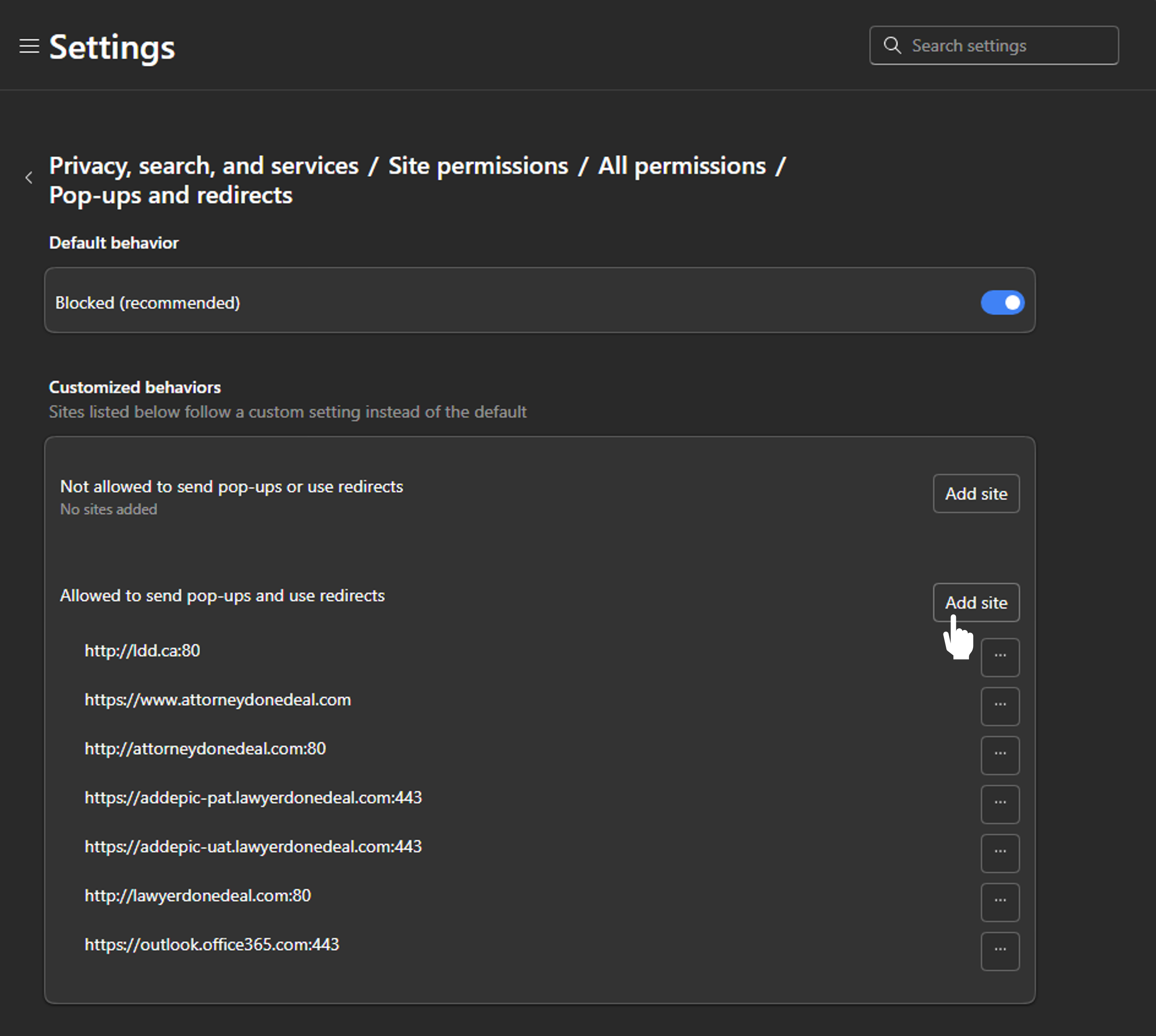
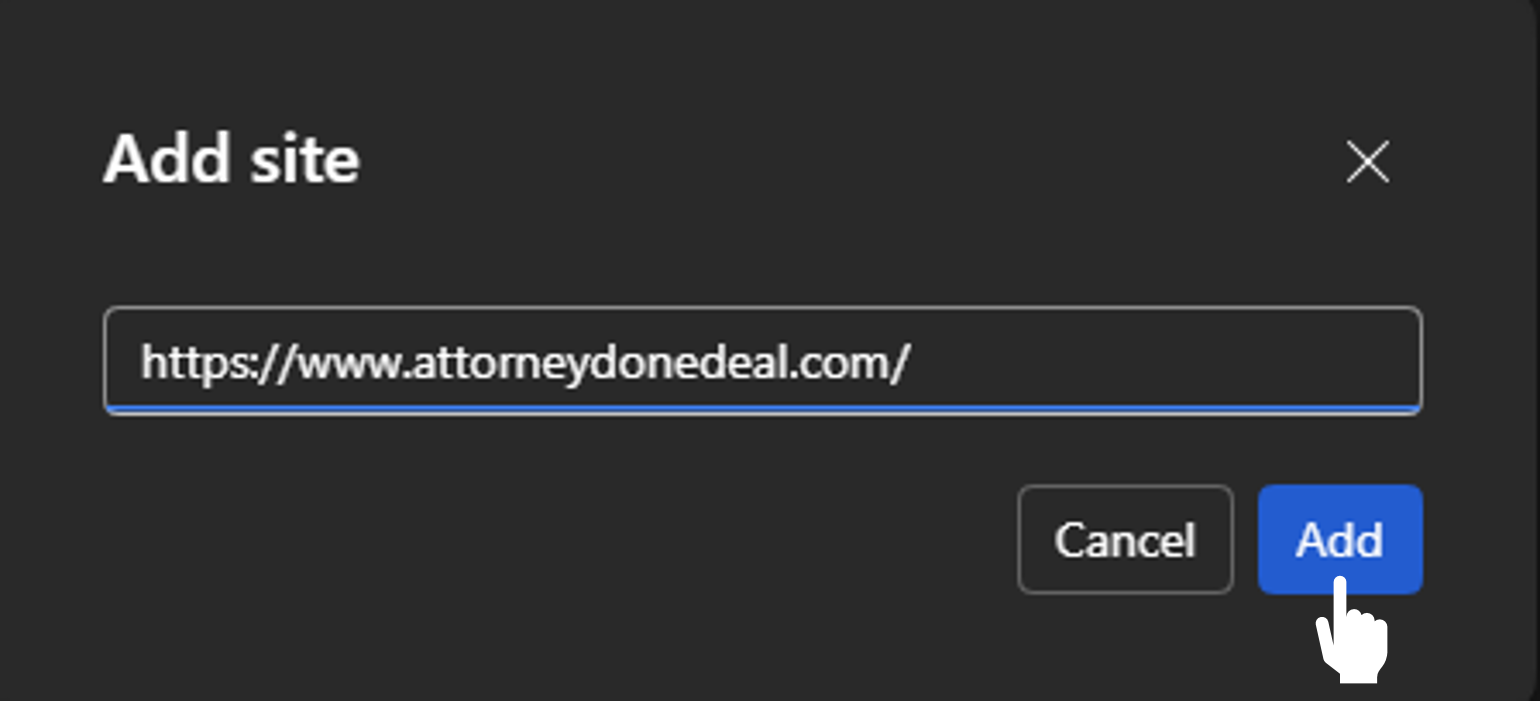
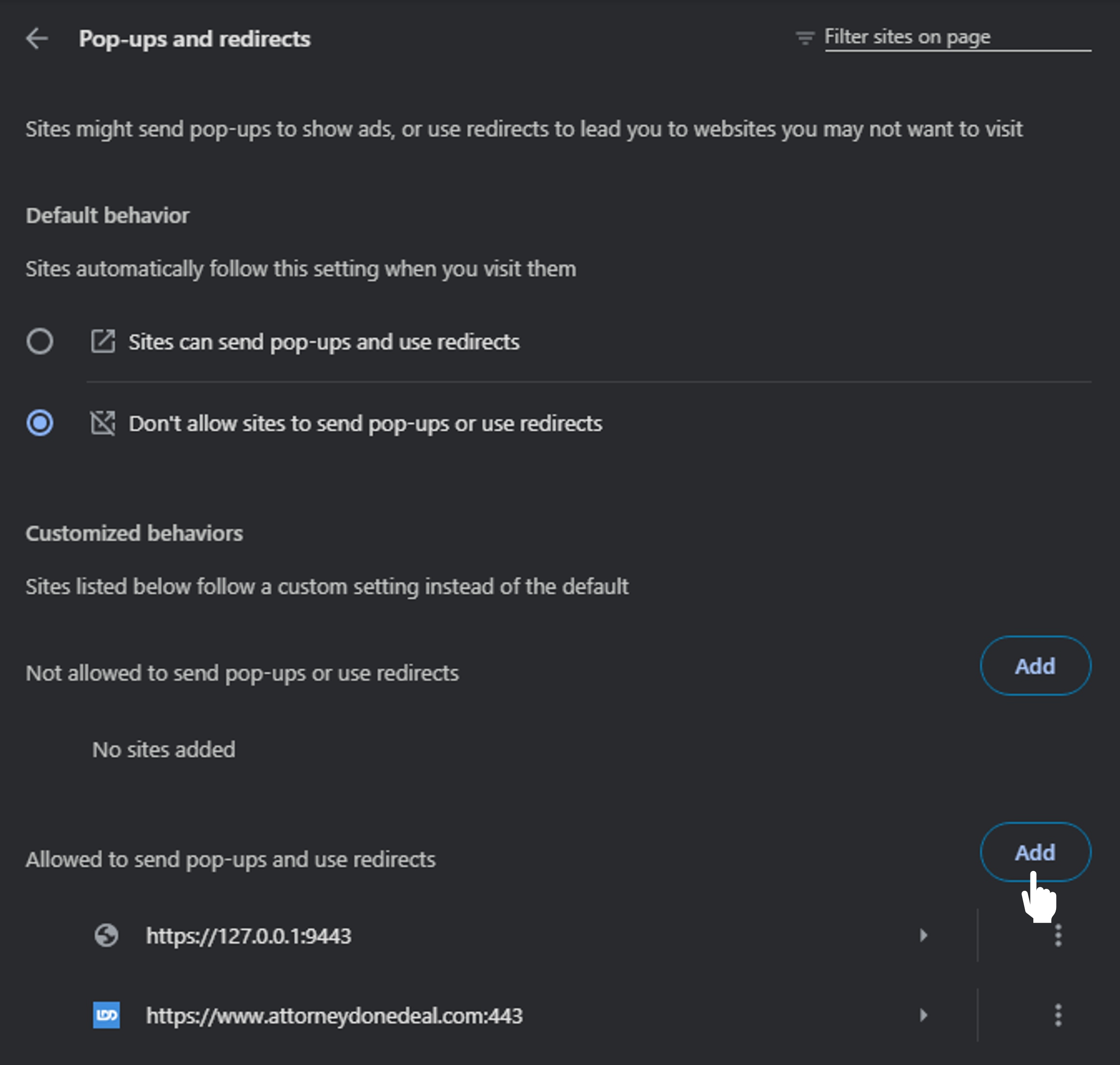
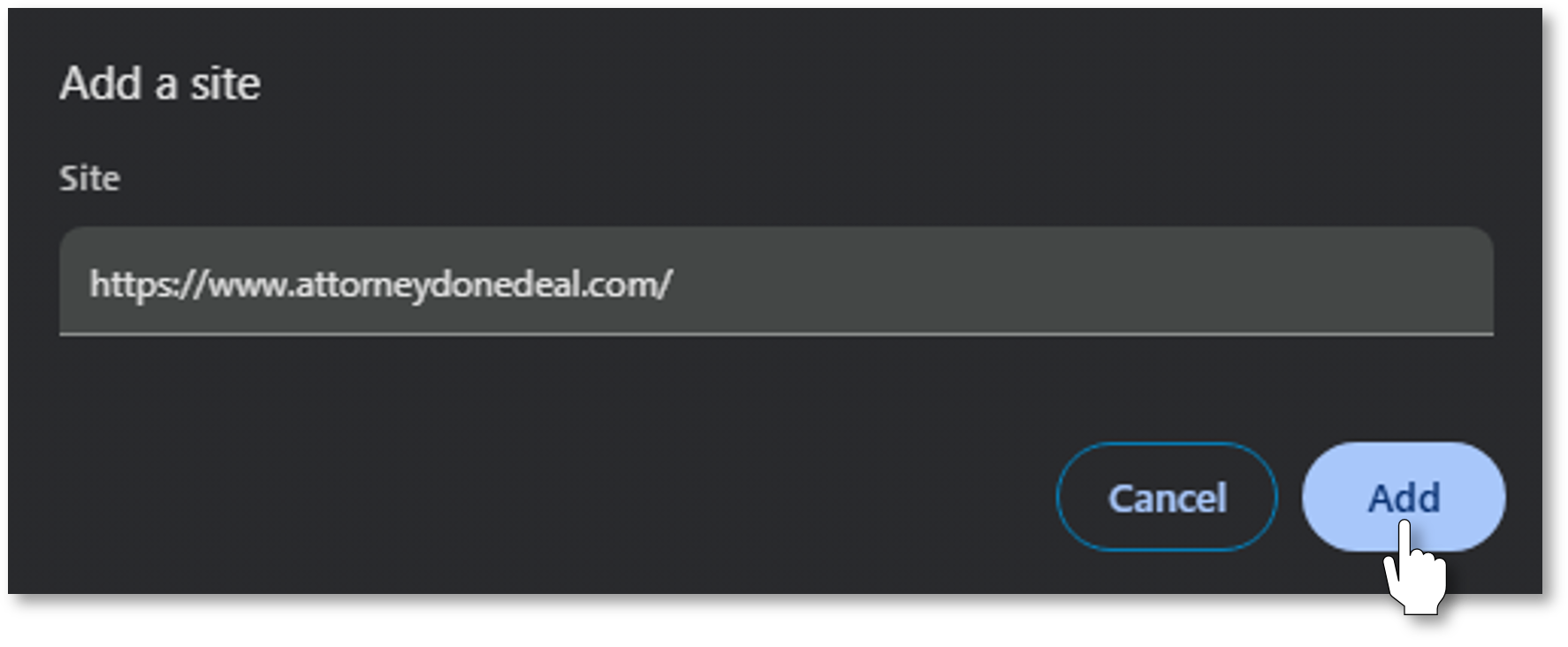
Setup Instructions for Microsoft Edge

Microsoft Edge, like Chrome, will run EPIC natively without any additional plugins or running external applications; however, in instances where checks are disbursed using QuickBooks Desktop, it is necessary to enable IE Mode in Microsoft Edge. Natively, EPIC will export to QuickBooks Online in Edge and Chrome, once QuickBooks information is added to EPIC specific to your system. If you are using QuickBookds Desktop, follow the steps below.
  1. If you are setting up EPIC to work with QuickBooks Desktop run the following (EPIC is built on the Chromium foundation and no longer supports Internet Explorer, it is recommended that you only use this to enable the temporary use of IE Mode to send disbursements to QuickBooks Desktop and not the full use of EPIC inside of IE Mode):
    • First update the registry in your computer to grant the specific permissions that Edge will need to activate IE Mode properly. To do this, download the program and the following link: iemodeon.reg
    • The browser may prevent the download of this file. If a message appears in your download list that the file is potentially dangerous, click the option "Keep file". This will allow the download to proceed.
    • Once downloaded, close all internet explorer windows. Locate the downloaded file (usually you will find this file in your downloads folder which normally appears as "C:\Users\username\Downloads\").
    • Right-click the file and select "Run as Administrator" (If you are not the administrator of the computer, you will need to have your IT team run the application for you). You will receive notices advising that the program will change your registry and could harm your computer, please accept and confirm all pop-up messages until you receive confirmation that the registry update was complete.
    • After the update has successfully completed, open Microsoft Edge.
    • In the address bar, type "edge://settings/defaultBrowser" and hit enter. Once the page loads, locate the section “Let Internet Explorer open sites in Microsoft Edge”, set that to “Incompatible Sites Only” and in the section: “Allow sites to be reloaded in Internet Explorer mode (IE mode)”, set this to “Allow”.
      Note: At any point, you may see an option displayed asking you to restart Edge. If this comes up, click restart. When Edge reloads, continue with the configuration from the same page "edge://settings/defaultBrowser".
      When ready to continue, locate the section: “Internet Explorer mode pages”, click “Add” and type in the following: https://www.attorneydonedeal.com/epicplus.
    • Next, type or copy and paste the following link into the Edge Address bar: "edge://settings/appearance"
      Scroll down to the section labeled “Customize Toolbar” and begin looking for the section: “Select which buttons to show on the toolbar”.
      Towards the bottom of this list you will see the “Internet Explorer mode (IE mode)" switch, make sure that is turned on.
    • Navigate to the EPIC login page https://www.attorneydonedeal.com/epicplus/login.asp.
      Once the page has loaded, look for the "IE Mode" icon on the taskbar, it will look like a folder with an "e" on the bottom left of the icon. This will reload the page in IE Mode for you. Look for the icon similar to the one below:
      e

      Instead of a padlock icon in your address bar, you will see a blue "e".
      Click that and turn both switches on to always load EPIC in IE Mode. If you only need it to load in IE mode when transferring disbursements to QuickBooks (recommended), leave the bottom switch turned off. This will allow you to work on your files in Edge and when you are ready to disburse, log out, click the IE mode button and log back in. This limits the number of technical issues that will arise from using EPIC in IE mode.
  2. To disable IE Mode, download and run the following file: iemodeoff.reg