Creating a file

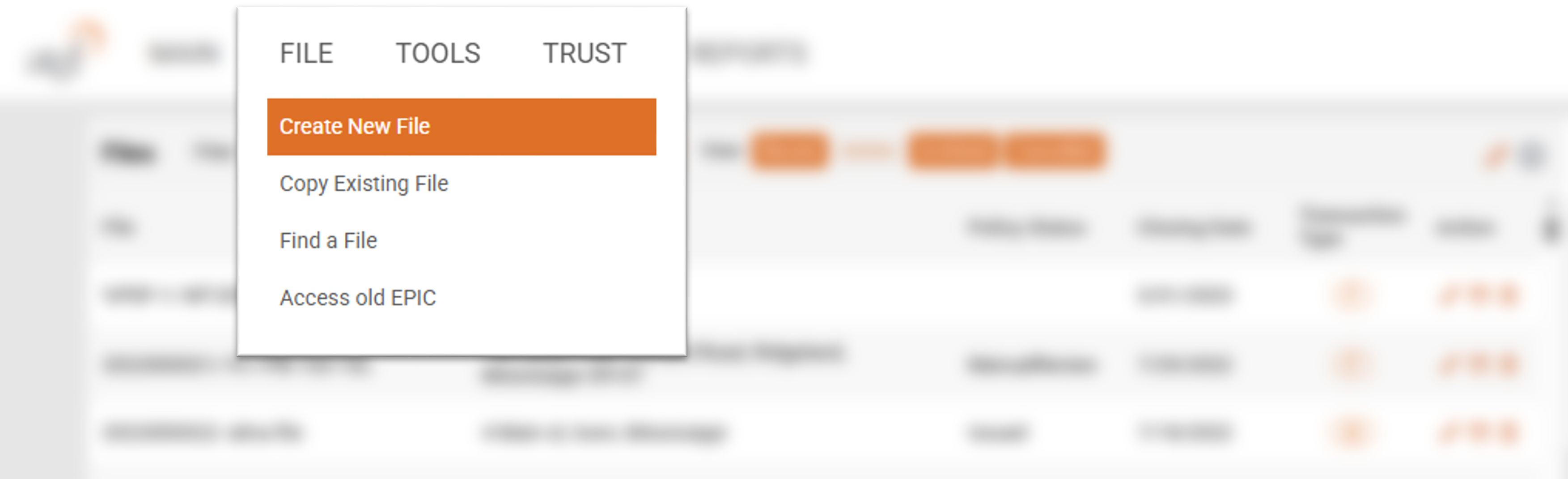
You have a few options available to you for setting up a new file. You can select the “Create File” button from the Main landing page or you can select the "Create New File" option from the FILE menu. The FILE menu option can be used no matter where you are in EPIC whereas the Create File button is only available after navigating back to the Main landing page.

vs.

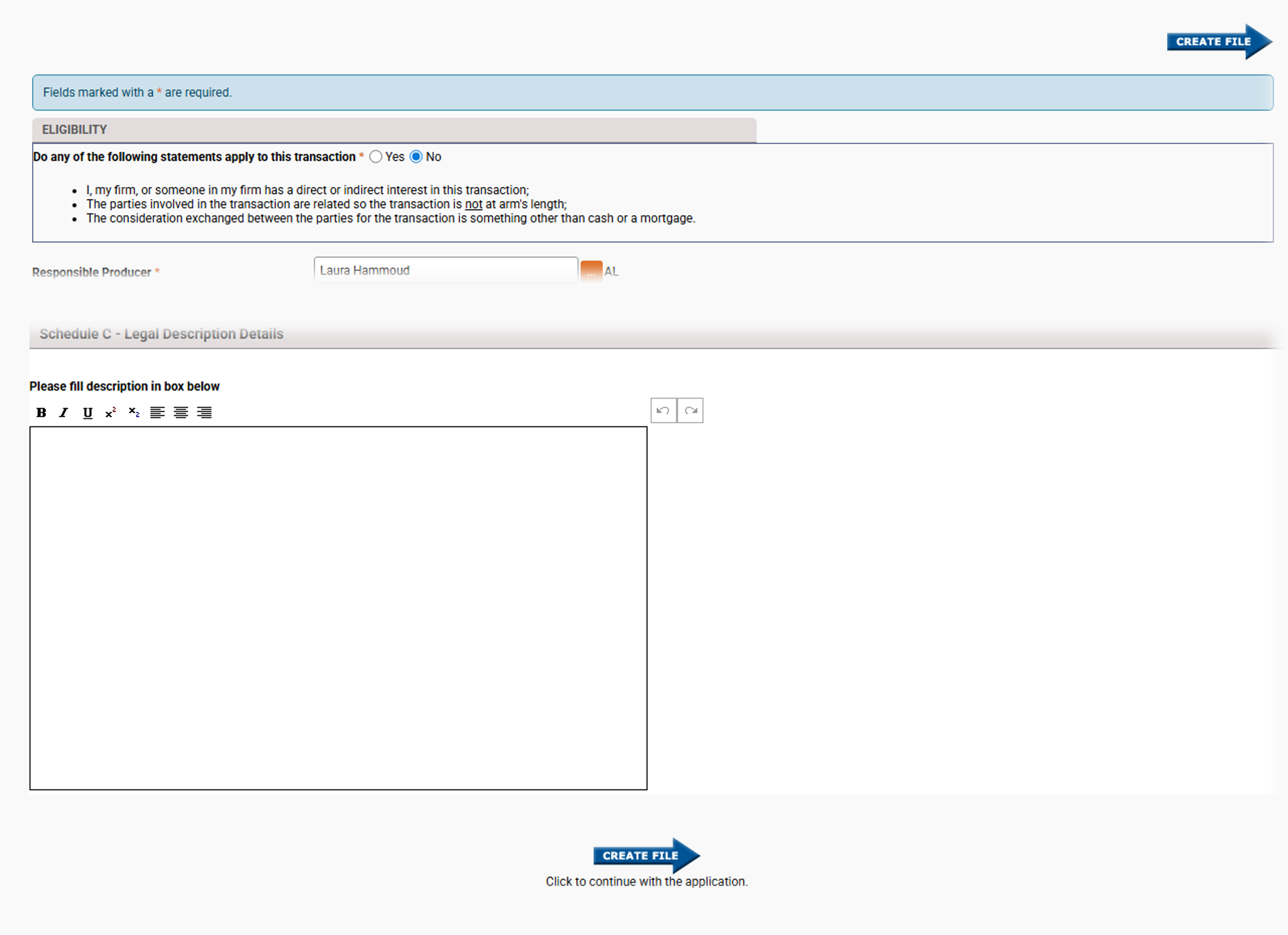
ELIGIBILITY Section

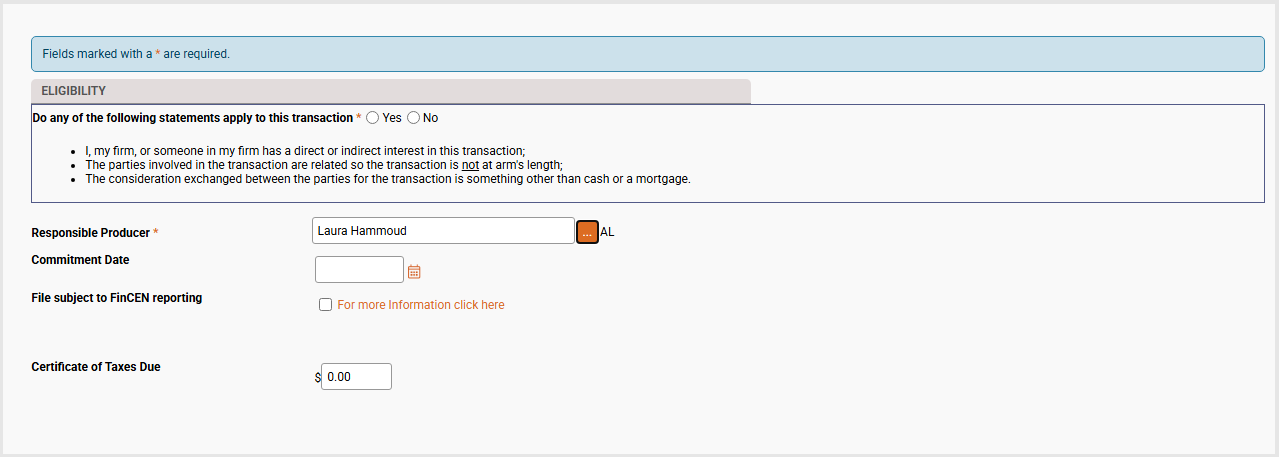
The section is where the user will identify any files where anyone in the agency of the agency itself may have interest in the transaction. If the transaction is NOT arm's length, then select "Yes" to ensure that a member of ATGF's underwriting team reviews the file prior to a commitment being issued. This will give you an unbiased second pair of eyes on the file to help ensure any issues are found and resolved.
The next question is the "Responsible Producer". This should automatically fill in unless your agency spans more than one state and utilize the same Member ID for each state. If this is the case, the field will be blank and the correct state will need to be selected from the list available by clicking the ellipses button. Once this is filled in, the screen will auto populate with the remaining fields.

The only fields in the image above that are required are the Eligibility Statement and the Responsible Producer (look for the red asterisk (*) on field name to identify required fields).

File

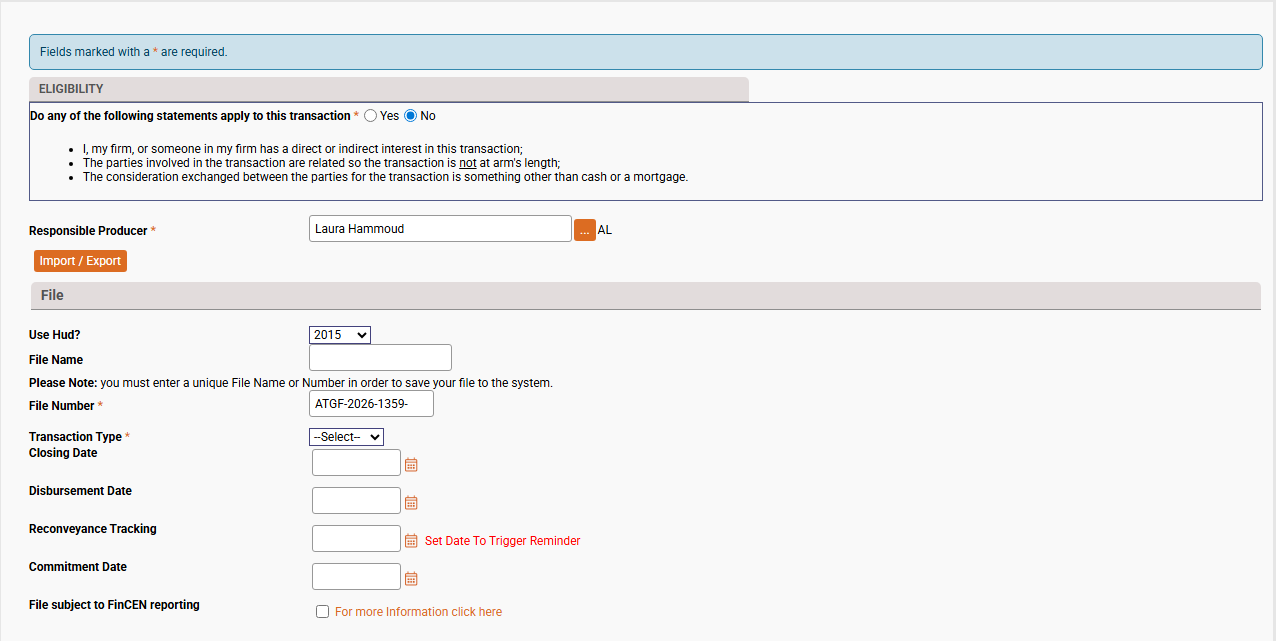
This section will appear after filling in the two required fields from the previous tab. Some of the fields that were showing will relocate to their corresponding sections and a new button "Import / Export" will appear. This is an advanced file copy function that can be used to import an existing file. This function will be covered in a separate section.

Use Hud?

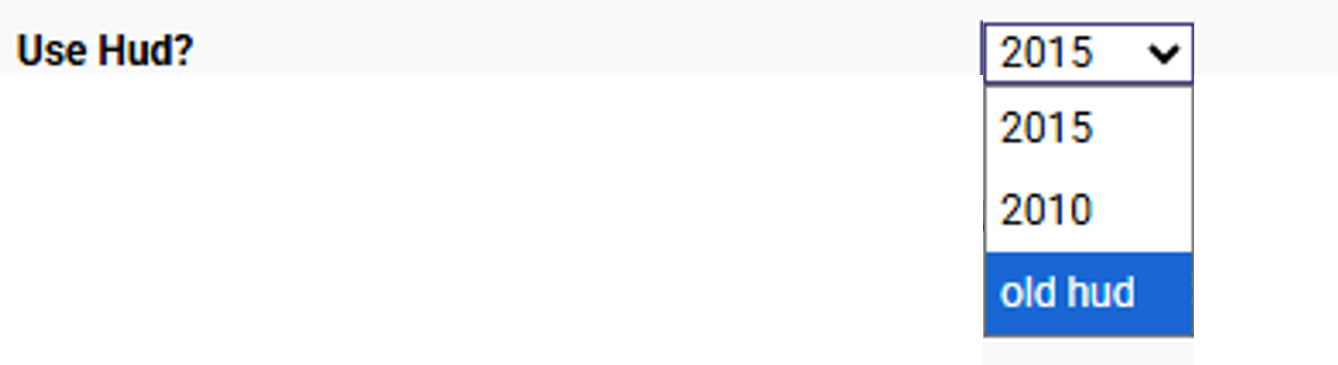
This field is not required to be selected prior to setting up a file; however, it defaults to "2015" which is the Closing Dislosure. If you know that the lender is requesting the HUD instead of the Closing disclosure, select "2010" instead. This screen also contains an additional option "Old HUD".
It is exceptionally rare that this version is ever needed; however, if it is ever required, it can only be selected from this screen. Once the file is set up, EPIC no longer provides the option.

File Name

This is not a required filed; however, if filled it, it must be unique and cannot match a prior file name.

File Number

This is a required field. If the file number generator inside of EPIC's "Firm Settings" screen, then the field will always be blank until filled in. Review the Firm Settings section to learn how to have the file numbers auto populate each time a new file is created to save more time in setting up a file and have another required field auto-filled.

Transaction Type

This is another required field. EPIC will reconfigure based on the transaction type. You may not see the difference on the file creation screen; however, it will make a difference on the GEN INFO tab once the file is created.

Closing Date

Enter the expected closing date. This is not a required field to create a file, but it will trigger a warning message once you tell EPIC to create the file for you. This date can be changed at any time, don't be pressured to get it correct at this stage.

Disbursement Date

This field will auto-populate based on the Closing Date and transaction type. For purchases, it will default to the same business day whereas Refinance files will default to 3 business days after closing. This field can also be changed at any time.

Reconveyance Tracking

This field does not auto-populate. Enter the date that will appear on the EPIC calendar as a reminder to ensure all documents have been recorded and reconveyed, including any security instruments required to be paid off as part of the closing.

Commitment Date

This this stage, the commtiment date may not be known. This is the county "good through date". In most cases, you will not know the date that the county has certified accuracy of the recordings until a search is completed.

File subject to FinCEN reporting

Check this box if the transaction meets any of the FinCEN reporting requirements. This will automatically add a requirements to the commitment indicating that the FinCEN will need to be completed prioer to Closing.

Property Address

Full Property Address Not Available

Checking this box will replace the "Sreet No." and "Street Name" fields with a "Description" field. Use this only when the property has not been assigned a physical address by the Post Office. Below are the two views based on whether this field is checked or not.

Street No.

In this field, enter the street number (also known as the house number)

Street Name

In this field, enter the remaining address information; i.e., direction, street name, etc.

Unit Description

This field can have the information typed directly or click the ellipses and choose a pre-defined option.

Unit Number

Enter the information following the Unit Description. This field will accept letters and numbers.

Note: This field will not display on the commitment or policy if the Unit Description field is left blank.

Description

When no property address is availabe, enter a brief description used to identify the property, limit this to 150 characters or less.

State

This field cannot be changed. It is based on the "Responsible Producer" selected on the prior tab. If the state is incorrect, go back to the top of the screen and re-select the correct producer for the state the property is located.

Zip

If the zip code is known, enter at least the 5-digit zip code. The field will accept the Zip+4 if you wish to include it. Entering the Zip Code will enable EPIC to auto-populate the Town and County fields for you.

Town

EPIC will auto-populate the town/city name for you based on the zip code entered. It is important to know that the information pre-populiated in this field is based on the most common use for the zip code; however, there are times in which a Zip Code may include town names that are less frequently used. If this is the case, please click in this field and update it to the correct town.

County

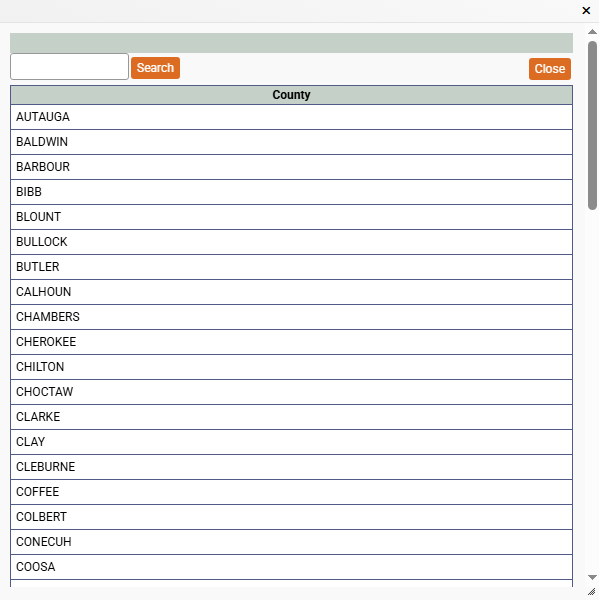
This required field should auto-populate based on the Zip Code entered. Although it is rarer to have a zip code span multiple counties than multiple towns, it does occur. Please make sure that the county shown is the one that encompasses the majority of the property.

Note: Although this field can be edited directly, do not type the name of the county. If it is wrong, delete the county name and press "Tab" on the keyboard to launch the County list window. Select the correct county from the list. Alternatively, if the field is blank, just click the Search button to the right of the County field.

Property Details

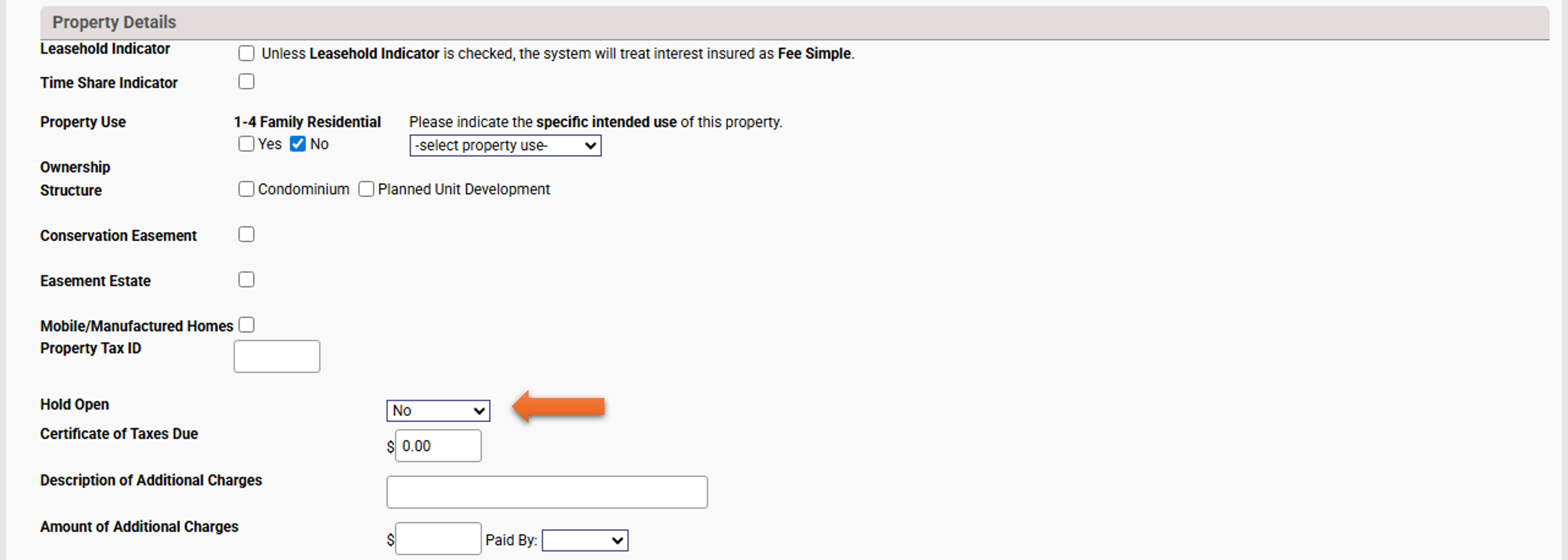
This section collects additional information about the property. Review and select all the appropriate options. Once the file is created, this section will move to a new screen that is accesed differently. Selecting the correct information now will prevent something from being overlooked later.

Leasehold Indicator

EPIC will treat all files as a "Fee Simple" interest unless this field is selected. In most transactions, the status of this field will not need to be changed.

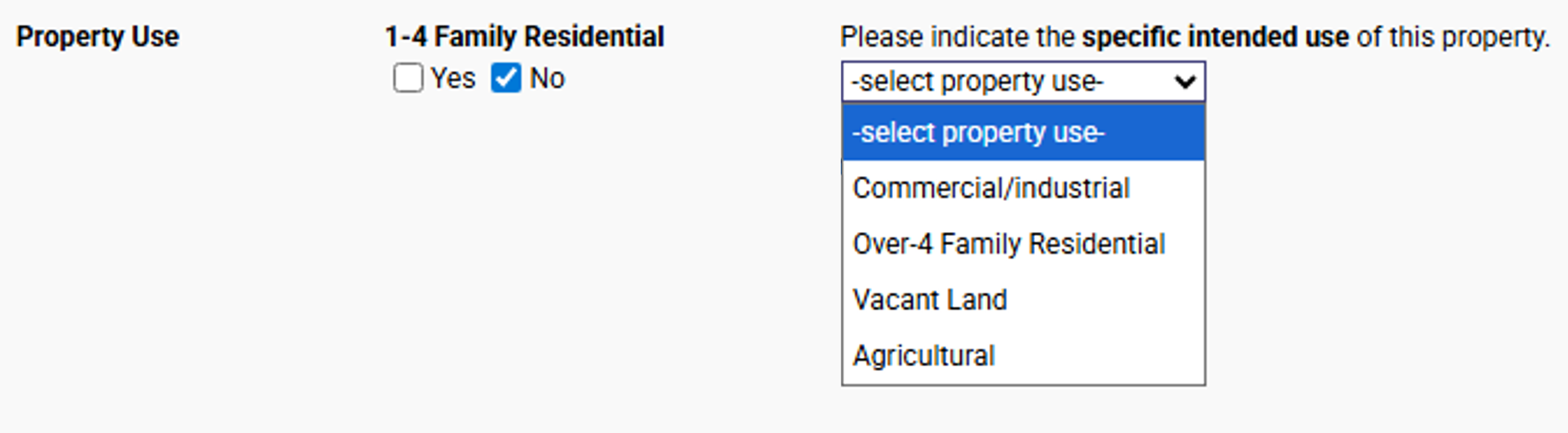
Property Use

Here you will select the property use type at the time of closing, not the intended use. To change from 1-4 Family Residential to another property type, select the "No" check box. This will trigger a message to select a property use type. Acknowledge the message and select the correct option from the list in the drop-down.

Ownership Structure

If applicable, indicate if the property is a Condominium or Planned Unit Development. If neither are selected, the ALTA  4 or 5 series endorsements will not be available for the policy.

Conservation Easement

Select this only if the transaction is creating a conservation easement.

Easement Estate

Select this only if the transaction is creating an easement estate.

Mobile/Manufactured Homes

If the transaction includse a manufactured home, select this field. This will cause the file to go into manual review to allow the underwriting team to review any recorded or to-be-recorded documents related to the affixation of the manufactured home. Otherwise, the non-affixed property exception will be required.

Property Tax ID

This is usually the information provided by the county and may be referred to as the parcel ID, account number, etc.

Hold Open

This option will only appear on purchase files and only if ATGF has filed a Hold-Open rate in the specific state. Select either foreclosure or investment based on whether the insured obtained the property from a foreclosure  or as an investment with the intention of reselling.

Certificate of Taxes Due

If you are in a state where it is necessary to obtain a Certificate of Taxes (such as Colorado) and have filed a rate for this, enter the amount to charge for the certificate of taxes. You can have this pre-populate for you by updating that rate field in the Firm Settings screen. That will be covered in a different section.

Description of Additional Charges

This and the next fields are used in unison. This field is the description for any additional charges that will require payment at closing. This is usually used to enter additional parcel searches. If you have a charge that you are not sure about, contact our underwriting team for additional direction.

Amount of Additional Charges

Enter the amount of the charge in the first box, in the second, indicate the party that will be responsible for the fee in the "Paid By:" drop down field.

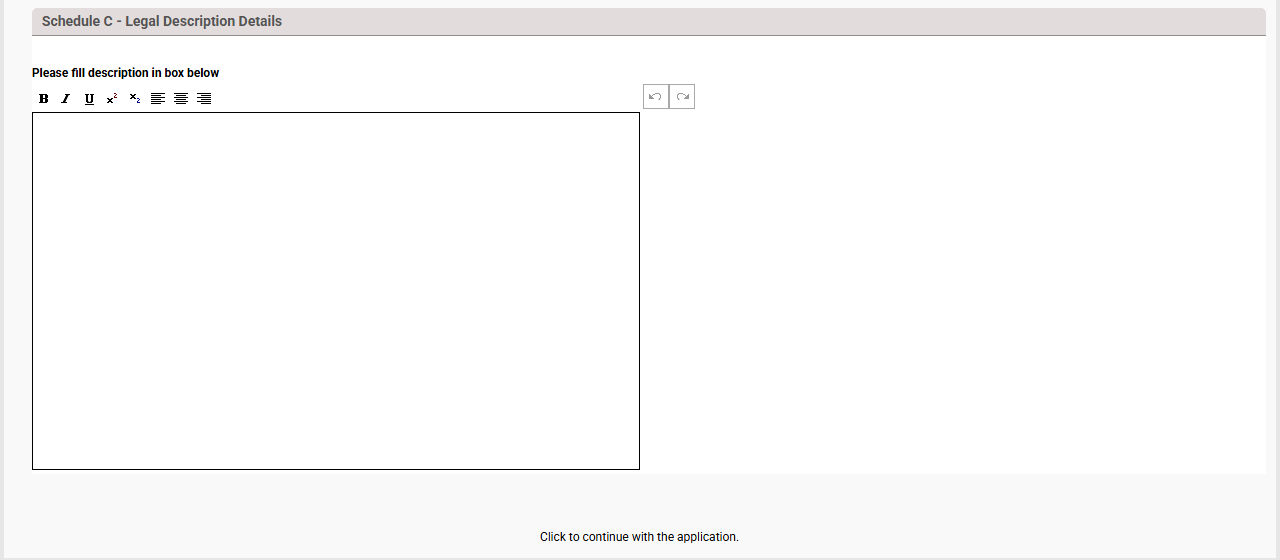
Schedule C - Legal Description Details

Enter the legal description for the property in this box. If copying and pasting the information, paste the legal description into notepad first and then copy and paste from there into the text box.
EPIC allows the user to upload a pdf document instead of typing in the legal description. If you have this option, you will need to wait until after the file is created in order to upload it. At this point, there is no file to associate a document, so the option is not available.
Once all of the required fields are satisfied, EPIC will show the icon to create the file. Click the blure arrow labeled "CREATE FILE" to continue. An arrow can be found at the top and bottom of the screen.